> For the complete documentation index, see [llms.txt](https://docs.zenlytic.com/llms.txt). Markdown versions of documentation pages are available by appending `.md` to page URLs; this page is available as [Markdown](https://docs.zenlytic.com/administration/user_attributes.md).
# User Attributes
Assign user attributes for access control, connection overrides, and default-deny security patterns.
This section covers how to set user attributes. User attributes are how users are assigned permissions that control their access to data (using [access grants](/data-modeling/access_grants.md)).
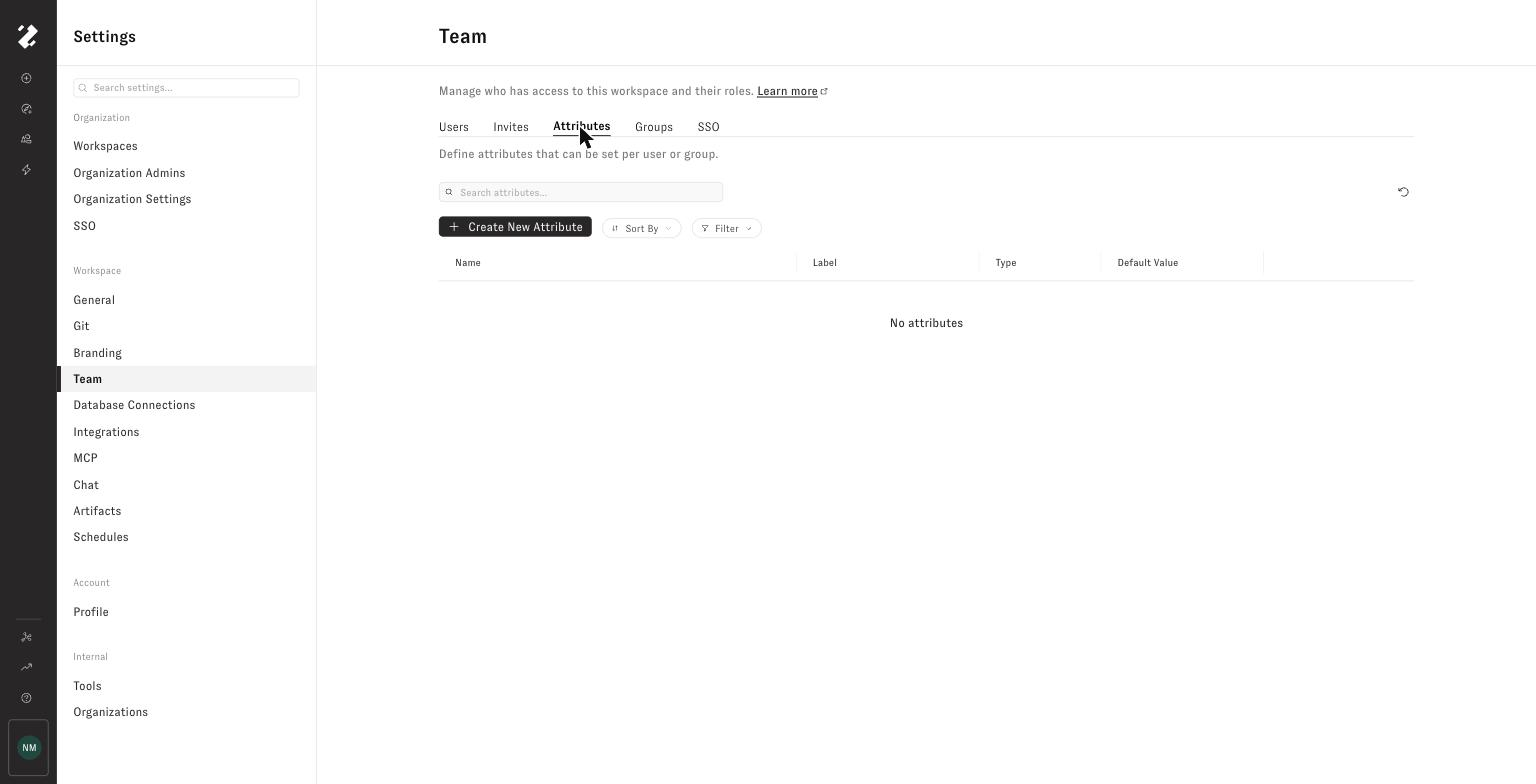
To set a user attribute on a user, go to **Settings → Team → Attributes** to define the attribute
Then make the user attribute you want in the pop up menu and pick its type
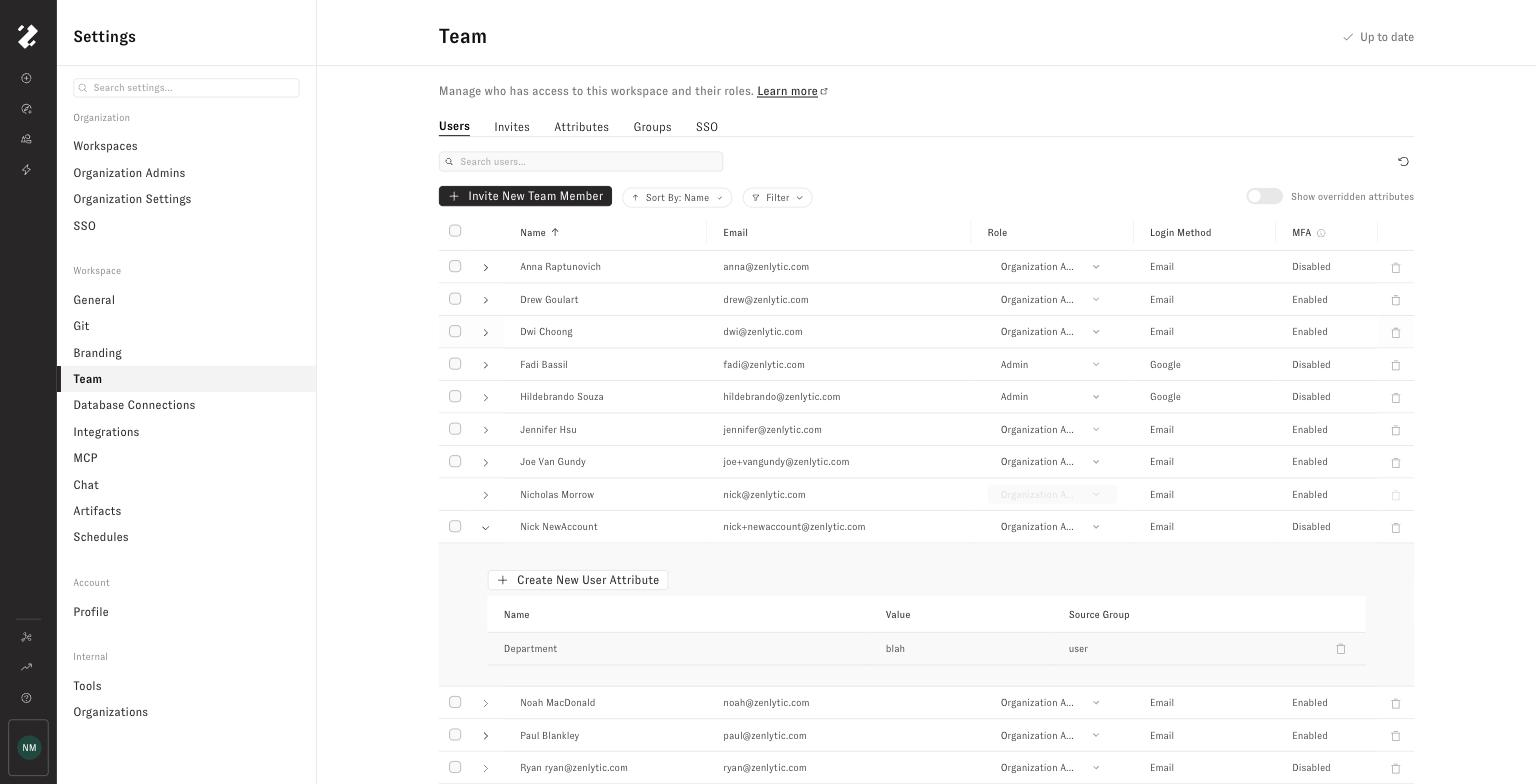
You can set a user attribute on either a group or an individual user. To set it on an individual user, click on Users, and set the attribute on the user. This example sets the user attribute `Department` to `blah` on this user.
Now that this user's `Department` attribute is set, their permissions will be determined by that (and any other attributes) set on that user.
> Important: If an access grant references a user attribute, users should have a value for that attribute. Leaving the attribute blank does not behave like a denied value. If a user does not have the referenced attribute at all, that grant is not triggered and does not block access. To make access default to denied, set a non-granting value on the All Users group, then set the allowed value only on the users or groups that should have access.
For example, since the user's attribute for `Department` has been set to `blah`, not one of the allowed options (`Executive`, `Finance`, `Marketing`) this user will not have access to anything restricted by this access grant.

For example, this user will *not* have access to this `email` field because the field has the `pii_access` access grant as one of the `required_access_grant` selections.

For more information on how to apply access grants and filters, look at the documentation on [access grants](/data-modeling/access_grants.md).
## User attributes populated automatically
There are certain user attributes that are populated automatically.
The following user attributes are populated automatically and cannot be overridden:
* `email`: the logged in user's email
## Reserved User Attributes
There are certain user attributes that have special behavior.
### zenlytic\_connection\_name
The `zenlytic_connection_name` user attribute has the special property that it will override the connection that is used to run queries on the data warehouse. You will set this property to the name of the credential, and that credential will be used in the query.
In the product, the user attribute is applied as the connection to use in all querying situations instead of:
* Testing the connection itself
* Listing databases when adding a new view
* Listing tables when adding a new view
### zenlytic\_connection\_database
The `zenlytic_connection_database` user attribute has the special property that it will override the "database" in the connection to the data warehouse. Not all warehouses handle the "database" idea in the same way, so this is exactly how that breaks down in each situation and for each database type.
In the product, the user attribute is applied as the database to use in all querying situations instead of:
* Testing the connection itself
* Listing databases when adding a new view
* Listing tables when adding a new view
The attribute only applies as the database chosen in the connection itself for:
* Postgres
* MySQL
* Redshift
* Azure Synapse
* SQL Server
* Trino
The attribute applies in the `USE DATABASE` clause for:
* DuckDB
* Snowflake
The attribute `does not apply` in databases where it is not applicable, which are:
* BigQuery
* Druid
* Databricks
---
# Agent Instructions
This documentation is published with GitBook. GitBook is the documentation platform designed so that both humans and AI agents can read, navigate, and reason over technical content effectively. Learn more at gitbook.com.
## Querying This Documentation
If you need additional information that is not directly available in this page, you can query the documentation by asking a question.
Perform an HTTP GET request on the following URL with the `ask` and `goal` query parameters:
```
GET https://docs.zenlytic.com/administration/user_attributes.md?ask=&goal=
```
`ask` is the immediate question: it should be specific, self-contained, and written in natural language.
`goal` is what the user is ultimately trying to achieve, the reason they need the answer. Sharing it helps GitBook give you a better, more relevant answer. A goal is most helpful when it describes the outcome the user wants rather than restating the question. For example, with `ask=how do I create an API token`, a goal like `automate deployments from our CI pipeline` lets GitBook tailor the answer to that use case.
The response will contain a direct answer to the question and relevant excerpts and sources from the documentation.
Use this mechanism when the answer is not explicitly present in the current page, you need clarification or additional context, or you want to retrieve related documentation sections.