# Enforce SSO-Only Login

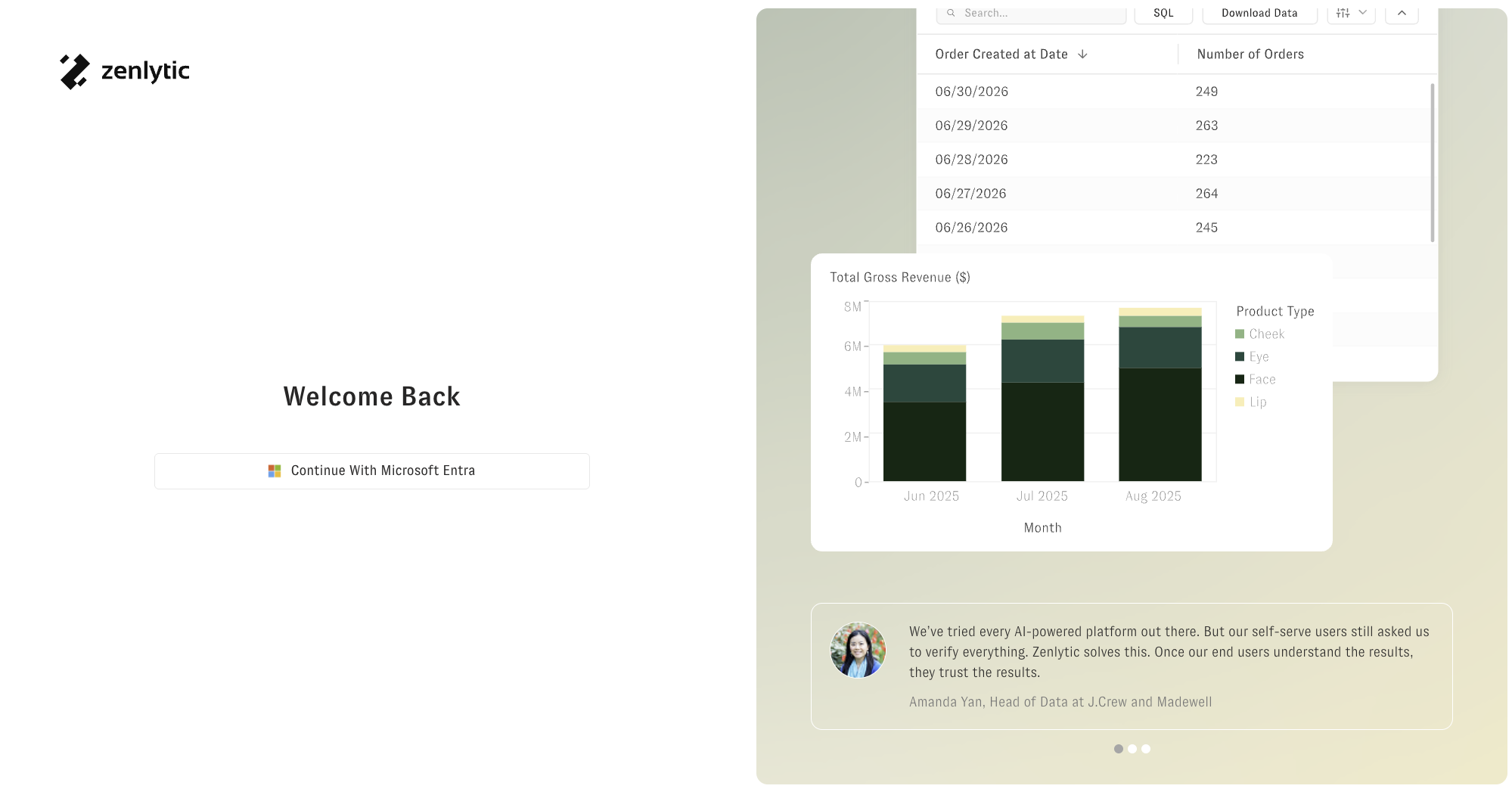
In SSO-enabled workspaces, the default username and password sign-in path on the workspace login page can be disabled by request. After Zenlytic applies the change, the workspace login page shows only your configured SSO provider as a sign-in option. This is a configuration Zenlytic applies on your behalf — it is not a self-serve setting in the workspace UI.

## What it does

By default, Zenlytic workspaces accept sign-ins from both:

* The **default Cognito provider** (username and password), and
* Any **SSO providers** you've configured (Microsoft Entra, Okta, etc.).

When the default Cognito provider is disabled for your workspace, username/password sign-in is no longer available on the workspace login page.

<figure><img src="/files/V3CfQzBnli5oEDe16eCW" alt="Zenlytic Welcome Back sign-in page showing only the Continue With Microsoft Entra button, with no username or password fields"><figcaption><p>The Zenlytic sign-in page in a workspace with the default Cognito provider disabled — only the configured SSO provider is offered.</p></figcaption></figure>

## Prerequisites

* At least one SSO provider must be configured and verified working. See:
  * [Microsoft Entra Zenlytic](/authentication-and-security/microsoft_entra_zenlytic.md)
  * [Okta Zenlytic](/authentication-and-security/okta_zenlytic.md)
* **Strongly recommended:** before requesting the change, confirm at least one administrator can successfully sign in via SSO.

## How to request the change

To have the default Cognito provider disabled for your workspace:

1. Contact your Zenlytic account team or <support@zenlytic.com>.
2. Confirm which workspace(s) you want the change applied to.
3. Confirm at least one administrator account can sign in via SSO.

Zenlytic will apply the change on your behalf.

## Recovery

If your IdP becomes unavailable after the default Cognito provider is disabled on the workspace login page, administrators can still sign in by going to [app.zenlytic.com](https://app.zenlytic.com) directly with their username and password, then switching into the affected workspace from the workspace selector. The workspace-level setting only removes the Cognito option from the workspace login page — existing username/password credentials still authenticate at the top-level app entry point.

**Recommendation:** Admin and Organization Admin users should keep both an SSO login and a username/password login on file, so they always have a backup sign-in path if the IdP is ever unavailable.

## Related

* [Microsoft Entra Zenlytic](/authentication-and-security/microsoft_entra_zenlytic.md)
* [Okta Zenlytic](/authentication-and-security/okta_zenlytic.md)
* [Login Troubleshooting](/authentication-and-security/login_troubleshooting.md)


---

# Agent Instructions: Querying This Documentation

If you need additional information that is not directly available in this page, you can query the documentation dynamically by asking a question.

Perform an HTTP GET request on the current page URL with the `ask` query parameter:

```
GET https://docs.zenlytic.com/authentication-and-security/enforce-sso-only.md?ask=<question>
```

The question should be specific, self-contained, and written in natural language.
The response will contain a direct answer to the question and relevant excerpts and sources from the documentation.

Use this mechanism when the answer is not explicitly present in the current page, you need clarification or additional context, or you want to retrieve related documentation sections.
