> For the complete documentation index, see [llms.txt](https://docs.zenlytic.com/llms.txt). Markdown versions of documentation pages are available by appending `.md` to page URLs; this page is available as [Markdown](https://docs.zenlytic.com/authentication-and-security/okta_zenlytic.md).
# Okta Zenlytic
Set up Okta SSO for Zenlytic and map the claims users need to authenticate correctly.
## Zenlytic: Single Sign-On with Okta
1. Key Features
2. Prerequisites
3. Guided Setup
4. Upon Completion
5. Debugging
## Supported Feature
With the Zenlytic integration, leverage the power of Okta's Single Sign-On capabilities, and enjoy the following:
* Service Provider (SP)-Initiated Authentication (SSO) Flow
* This authentication flow occurs when the user attempts to log in to the application from Zenlytic.
* Automatic account creation in Zenlytic on initial SSO.
## Prerequisites
Before getting started make sure to:
* Have the Zenlytic application installed in your Okta instance.
* Be aware that the Okta Single Sign-On integration is exclusively available for Workspaces on the Enterprise plan.
* Discuss with your Zenlytic contact to create a unique `Company ID` for your company, for example, company.zenlytic.com.
* Ensure the email addresses of Workspace members align perfectly with their Okta accounts.
Ready to dive in? Follow the steps below.
## Guided Setup
Once the Zenlytic application is installed, gather the necessary information to share with Zenlytic and tweak one of the App-settings as directed below.
**Recording Values**
1. Go to the Okta admin page, click on the Zenlytic application, and select the Sign On tab.
2. Make note of the values of Client ID and Client secret. You can click on the eye button to reveal these values.
3. Spot a section with a link titled 'OpenID Provider Metadata'? Click on it. In the JSON document that appears, search for a key named “issuer” and record the corresponding URL.
**Attribute Mapping**
Zenlytic requires the following attribute mappings:
1. email
2. family\_name
3. given\_name
4. name
Optionally, you may choose to set values for:
1. zenlytic\_role
a. When your user signs in for the first time, they will be granted the specified access level\
b. Values include:\
\- admin\
\- develop\
\- develop\_without\_deploy\
\- explore\
\- view
2. zenlytic\_user\_attributes\
a. Allows you to manually control access to data.\
b. Read about how user attributes work [here](/administration/user_attributes.md).\
c. Must be a valid array of key-value pairs\
d. Ex: `[{\"department\": \"Engineering\"}]`\
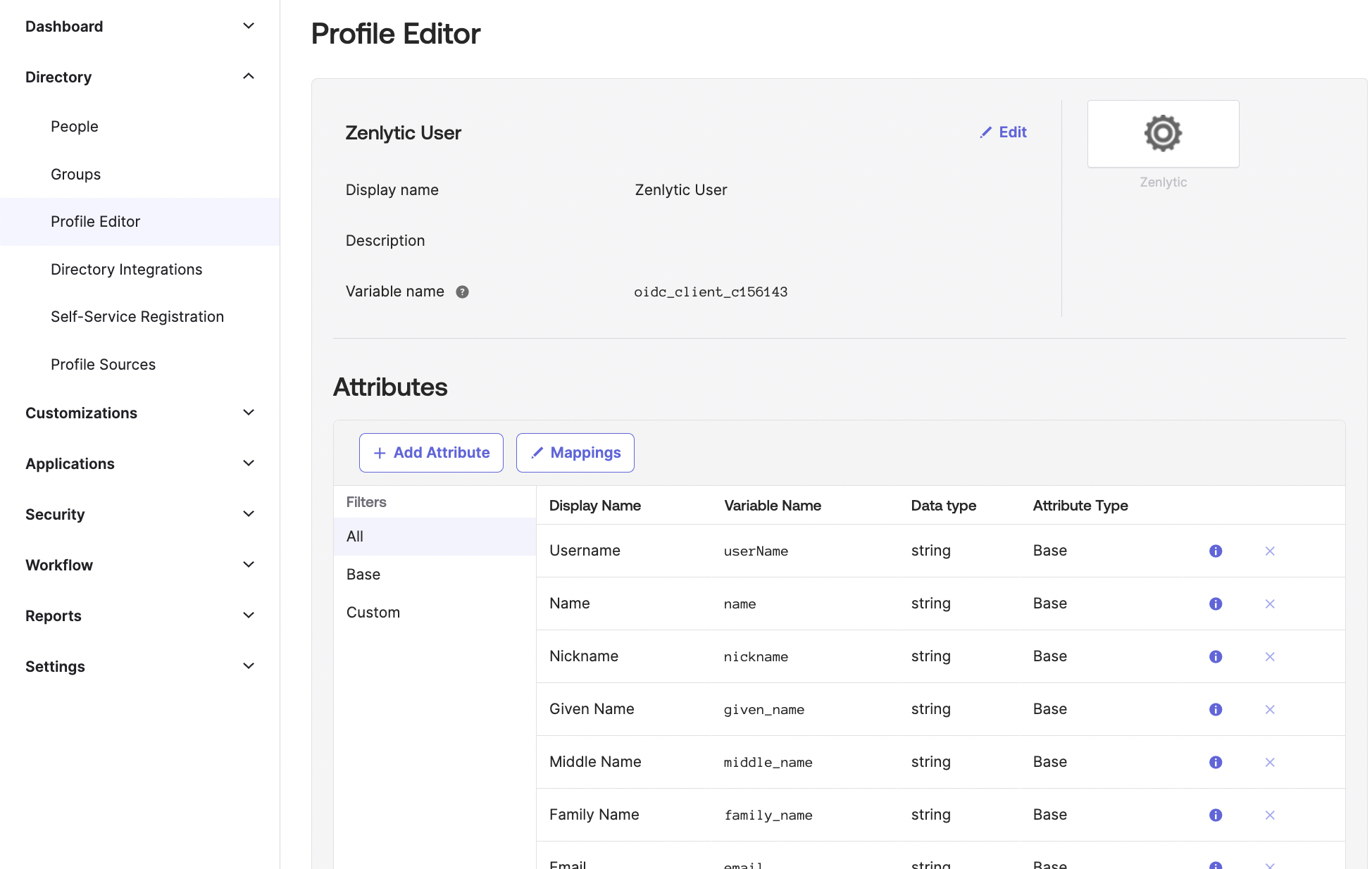
These may already be set up, but make sure those are showing up in the Okta Profile Editor.\

## Configuration
As a prerequisite, you should have received your company's unique `Company ID`.
In Okta, under the Zenlytic app, just make sure that you set the field labeled `Company ID` to your company's unique ID.
Deliver the Information to Zenlytic
Got all the information at hand (outlined below)? Fabulous! Now, email it to [**support@zenlytic.com**](mailto:support@zenlytic.com).
* Client ID
* Client Secret
* Issuer URL
* `Company ID`
Relax and let Zenlytic's support team take over from here. They will handle your request and reach out once the integration is configured.
## Upon Completion
Once the setup process is complete, you will be provided with your company's Zenlytic login url.
For example, if your `Company ID` is "mycompany", then your login url will be `https://mycompany.zenlytic.com/login`.
Your Zenlytic contact will have added you as the admin to your Zenlytic Workspace.
As the admin, you are responsible for manually adding your team members to your Zenlytic Workspace.
This can be done via **Settings → Team**, then **+ Team Member**.
Once added, the user may use the `Sign In with Okta` functionality.
When you go to your company's custom login url, you'll see the `Sign In With Okta` button. Click that, and you'll be ready to go!
Reach out to [**support@zenlytic.com**](mailto:support@zenlytic.com) if you want to add or remove other sign in options for your users, like email/password, Google, etc.
## Debugging
If you're having issues logging into Zenlytic, make sure you have the `Name` value set up in your `Attribute Mapping`. This may automatically already be set up in your Okta instance:
---
# Agent Instructions
This documentation is published with GitBook. GitBook is the documentation platform designed so that both humans and AI agents can read, navigate, and reason over technical content effectively. Learn more at gitbook.com.
## Querying This Documentation
If you need additional information that is not directly available in this page, you can query the documentation by asking a question.
Perform an HTTP GET request on the following URL with the `ask` and `goal` query parameters:
```
GET https://docs.zenlytic.com/authentication-and-security/okta_zenlytic.md?ask=&goal=
```
`ask` is the immediate question: it should be specific, self-contained, and written in natural language.
`goal` is what the user is ultimately trying to achieve, the reason they need the answer. Sharing it helps GitBook give you a better, more relevant answer. A goal is most helpful when it describes the outcome the user wants rather than restating the question. For example, with `ask=how do I create an API token`, a goal like `automate deployments from our CI pipeline` lets GitBook tailor the answer to that use case.
The response will contain a direct answer to the question and relevant excerpts and sources from the documentation.
Use this mechanism when the answer is not explicitly present in the current page, you need clarification or additional context, or you want to retrieve related documentation sections.