> For the complete documentation index, see [llms.txt](https://docs.zenlytic.com/llms.txt). Markdown versions of documentation pages are available by appending `.md` to page URLs; this page is available as [Markdown](https://docs.zenlytic.com/legacy/dashboard/dashboard-scheduled-delivery.md).
# Dashboard Scheduled Delivery
Schedule legacy dashboards for recurring delivery to users by email or other supported channels.
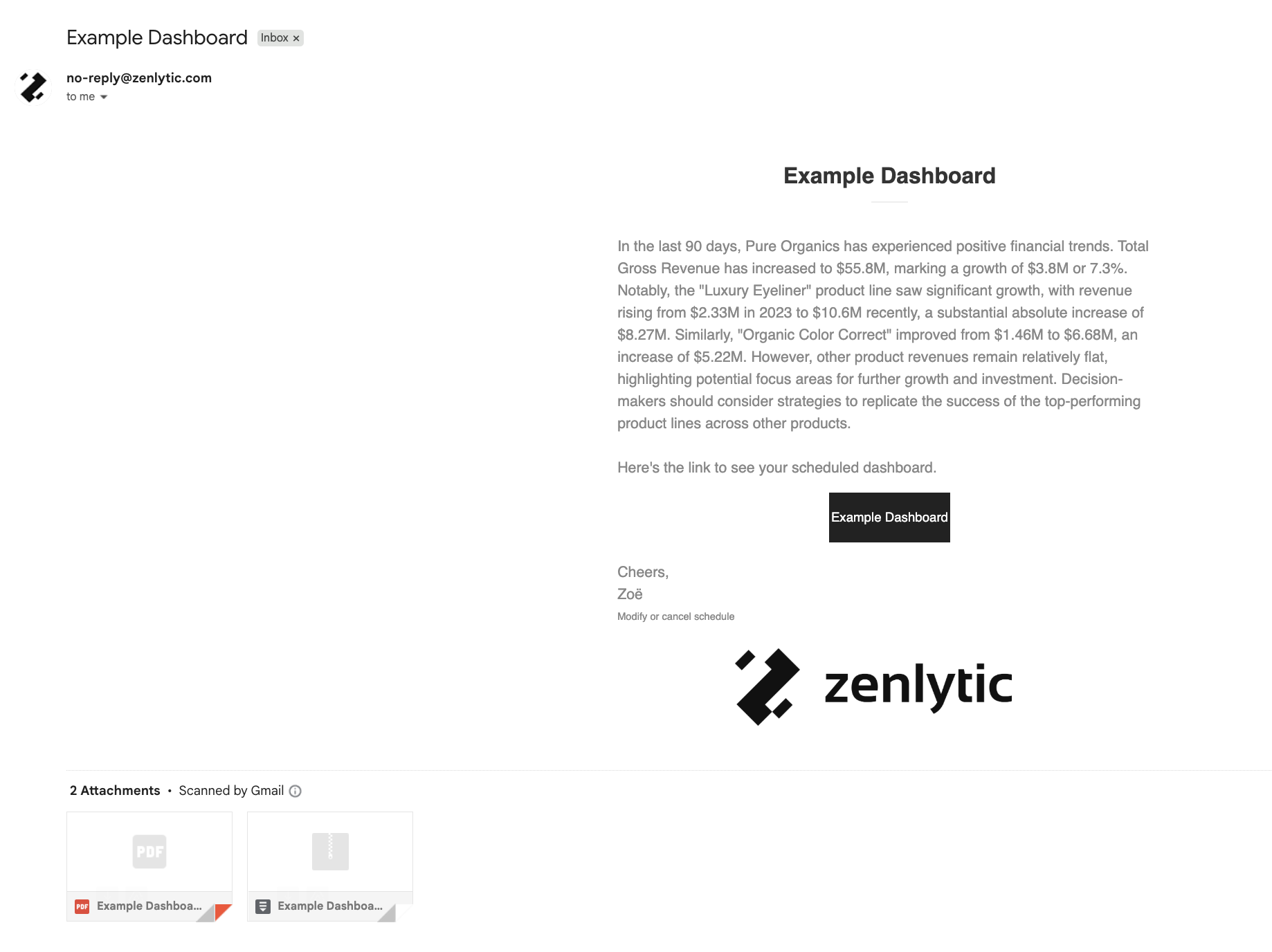
Scheduling dashboards gives users the ability to run a dashboard at a predetermined time or times and send the results to a selected audience. The scheduler can send a PDF version of the dashboard, CSV data download and a link to view the dashboard within the Zenlytic UI. The scheduler can also include a standard or customized AI summary of the results.
## To schedule a dashboard:
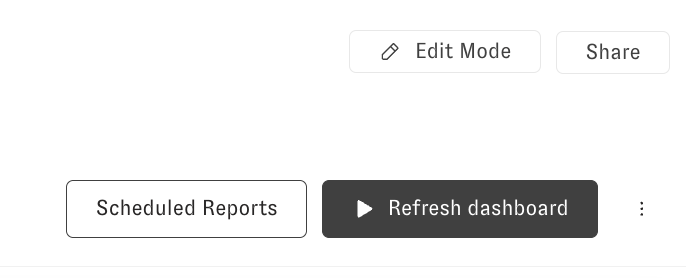
1. Open the “Scheduled Reports” model at the top right of the dashboard:
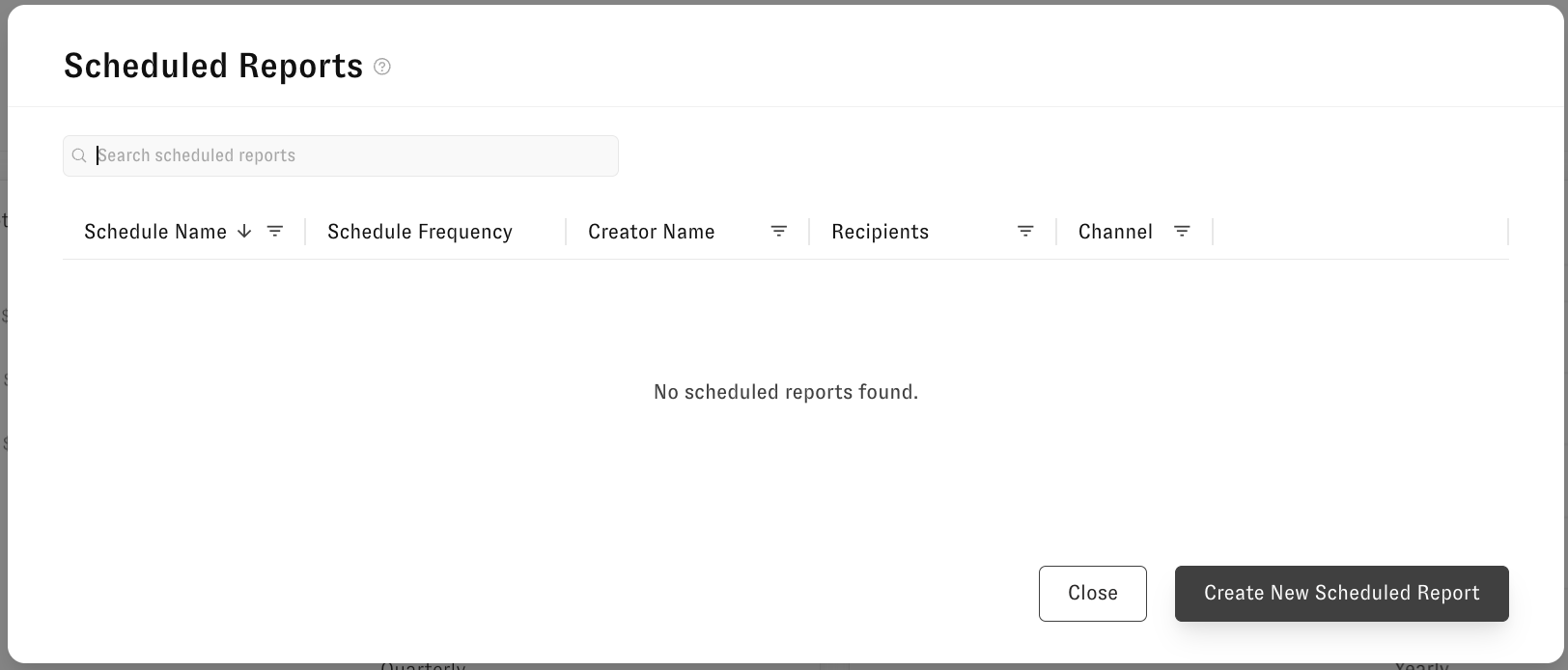
2. When the model opens, click on “Create New Schedule Report”
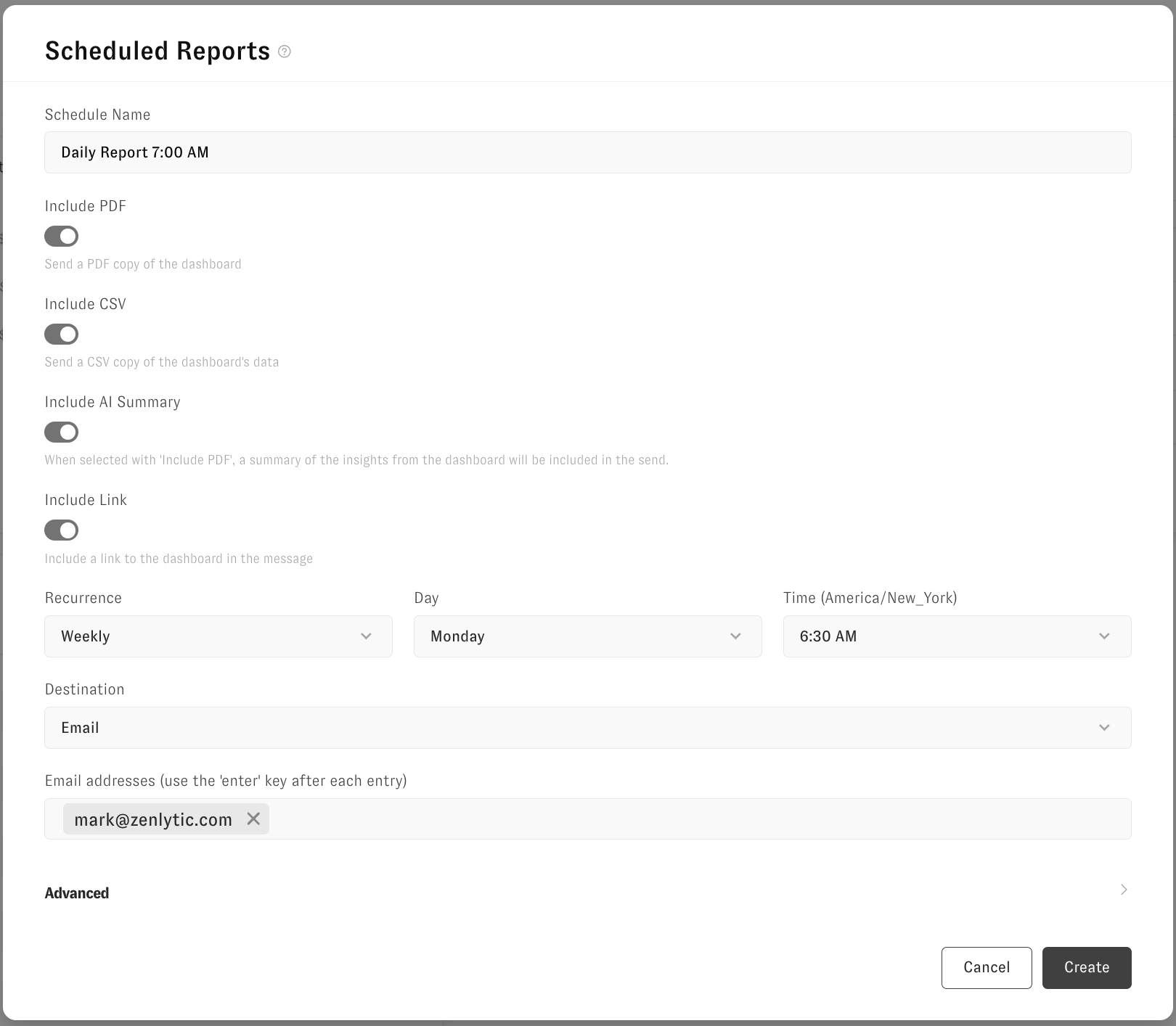
3. Once the schedule model opens, include the desired parameters:
* Enter a Schedule Name.
* Toggle on **Include PDF** to include a pdf version in the email.
* Toggle on **Include CSV** to include a csv data download in the email.
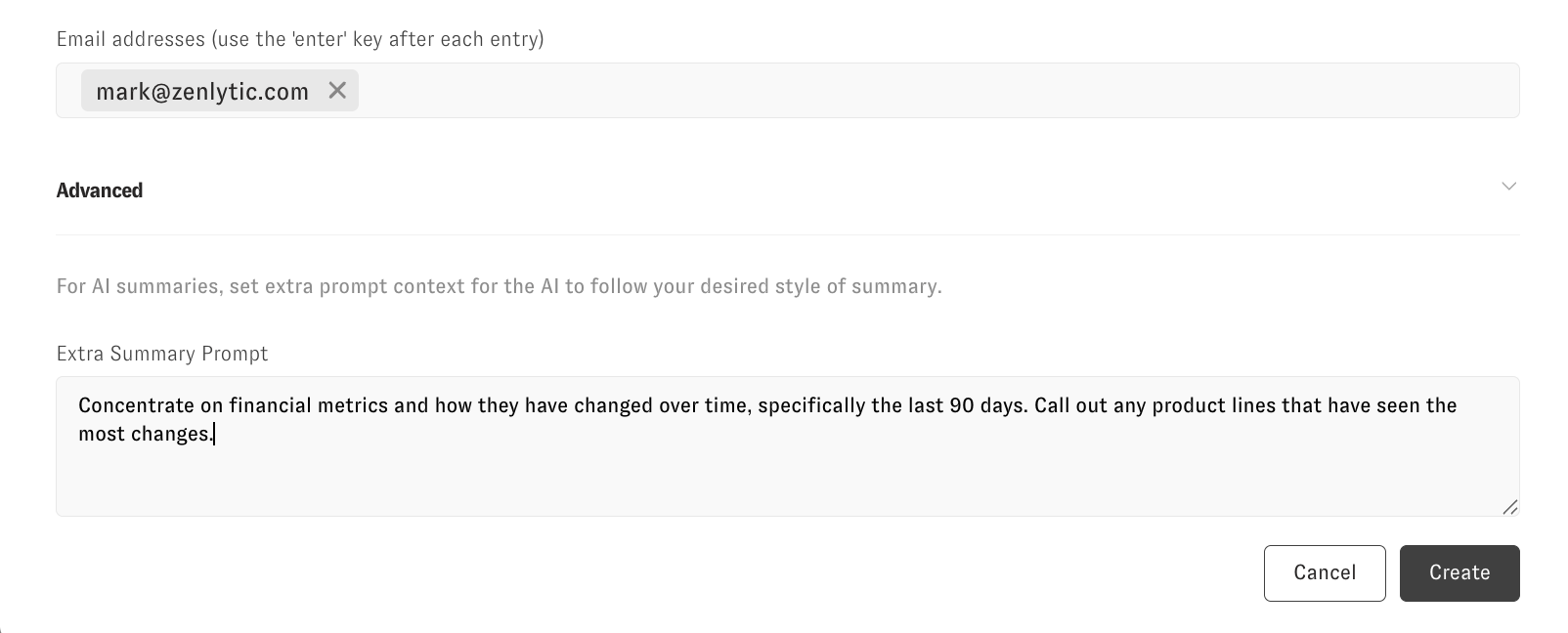
* Toggle on **Include AI Summary** to include an AI generated summary of the results (for customization, see **Advanced** section below.
* Toggle on **Include Link** to include a link to the dashboard. Note only include this if the user has an account on your Zenlytic workspace.
* Set the **Recurrence**. This can be Daily, Weekly or Monthly, on specific days and times. Use the **Cron** option for using Cron job syntax.
* Add destinations, this can be via email or Slack (if configured).
{% hint style="info" %}
**Note** Make sure the dashboard is **shared** with the intended recipients if including a link to the dashboard in the email.
{% endhint %}
**Advanced** option - use this to customize the AI summary output. For example, you can tell Zoë to focus on specific metrics or sections of the dashboard.
4. Once the schedule has been created, it will appear on the list of scheduled reports. You can click on the **Send a Copy Now** button to the right of the schedule name to send right away.
To run a test of the scheduler you can send to yourself and click **Send a Copy Now** before\
including others in the recipient list.
Example of Email with attachments
---
# Agent Instructions
This documentation is published with GitBook. GitBook is the documentation platform designed so that both humans and AI agents can read, navigate, and reason over technical content effectively. Learn more at gitbook.com.
## Querying This Documentation
If you need additional information that is not directly available in this page, you can query the documentation by asking a question.
Perform an HTTP GET request on the following URL with the `ask` and `goal` query parameters:
```
GET https://docs.zenlytic.com/legacy/dashboard/dashboard-scheduled-delivery.md?ask=&goal=
```
`ask` is the immediate question: it should be specific, self-contained, and written in natural language.
`goal` is what the user is ultimately trying to achieve, the reason they need the answer. Sharing it helps GitBook give you a better, more relevant answer. A goal is most helpful when it describes the outcome the user wants rather than restating the question. For example, with `ask=how do I create an API token`, a goal like `automate deployments from our CI pipeline` lets GitBook tailor the answer to that use case.
The response will contain a direct answer to the question and relevant excerpts and sources from the documentation.
Use this mechanism when the answer is not explicitly present in the current page, you need clarification or additional context, or you want to retrieve related documentation sections.