# Attachments

Attachments let you bring external files and structured queries directly into your conversation with Zoë. Use them to ground your analysis with specific data — whether that's a CSV from a colleague, a PDF report, or a live query against your data model.

## Attachments dropdown

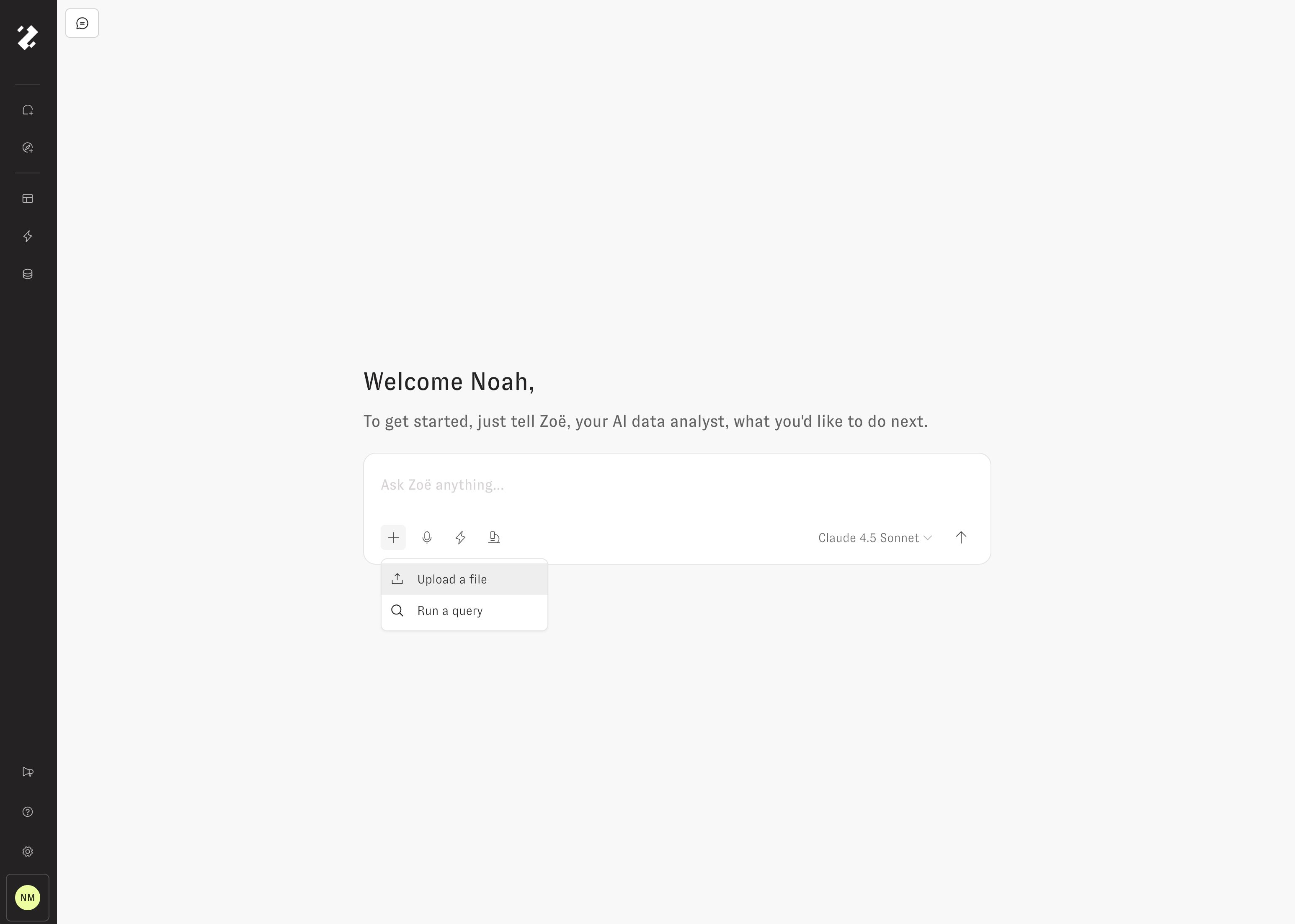
Click the **+** icon in the chat input to open the attachments dropdown. From here, choose one of two options:

* **Upload a file** — Attach CSVs, images, PDFs, and other supported file types (up to 5 files per message, 25 MB each).
* **Run a query** — Build a query from your data model's metrics and slices, or write raw SQL, and attach the results.

<figure><img src="/files/QAjICgpVa0z2NCnVKyLt" alt=""><figcaption><p>The attachments dropdown in the chat input</p></figcaption></figure>

## File attachments

Upload files when you need Zoë to work with data that lives outside your warehouse — spreadsheets, exported reports, screenshots, or reference documents.

### CSV example

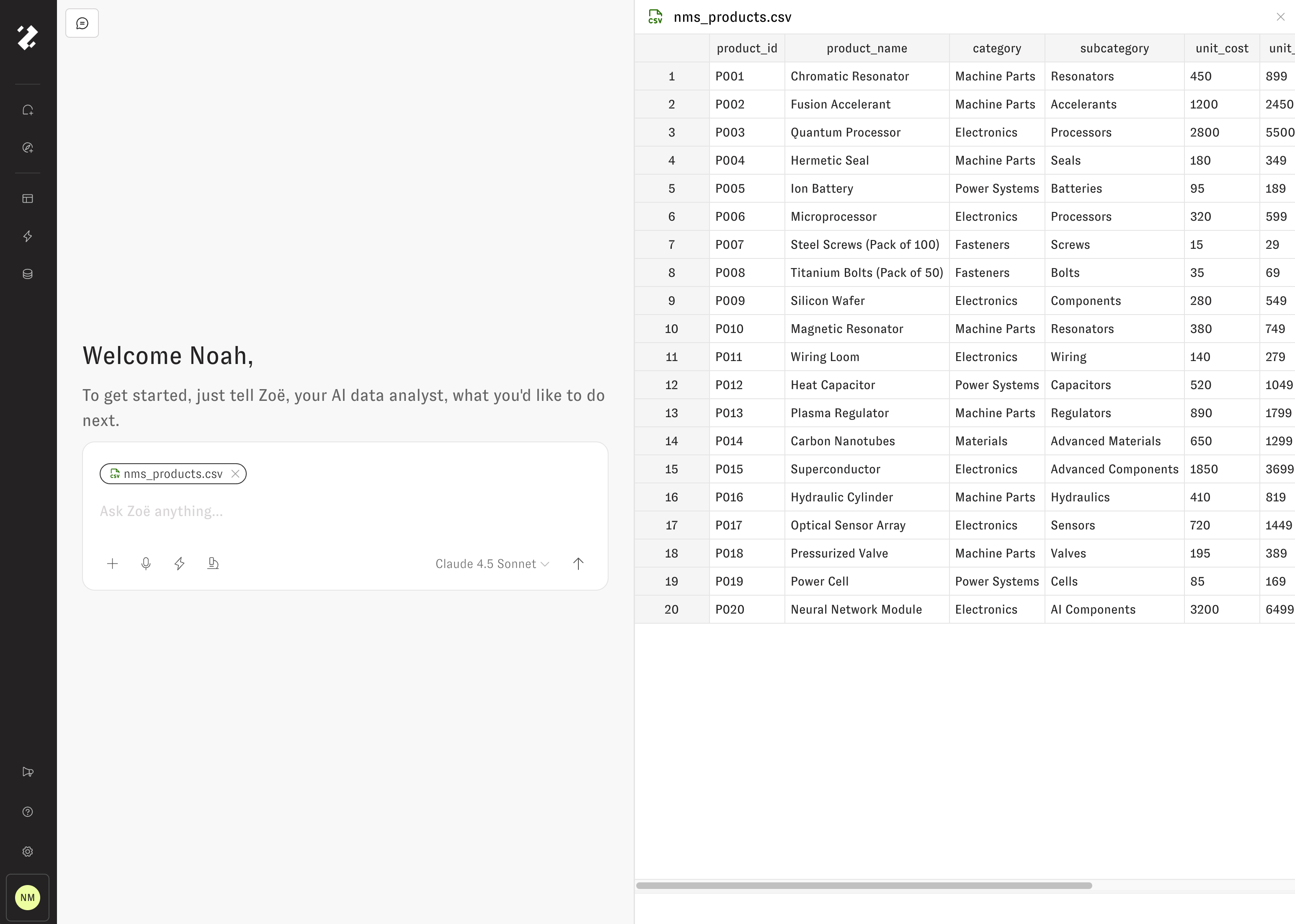
Select a CSV from the upload dialog to attach it to your message. Zoë reads the file contents, infers the schema, and treats the data as first-class context for the rest of the conversation.

{% hint style="info" %}
**CSV attachments in chat don't persist to your data model.** Files uploaded in a chat conversation are used only within that conversation (including in any [Artifacts](/using-zenlytic/artifacts.md) Zoë creates) — they don't create views or fields that Zoë can query later. For persistent data, upload the file through [Context Manager](/data-modeling/context_manager.md) instead; that creates a proper view that Zoë can reference from any question.
{% endhint %}

<figure><img src="/files/ikdsQz01qtJgE4pxjoWh" alt=""><figcaption><p>Attaching a CSV file to the conversation</p></figcaption></figure>

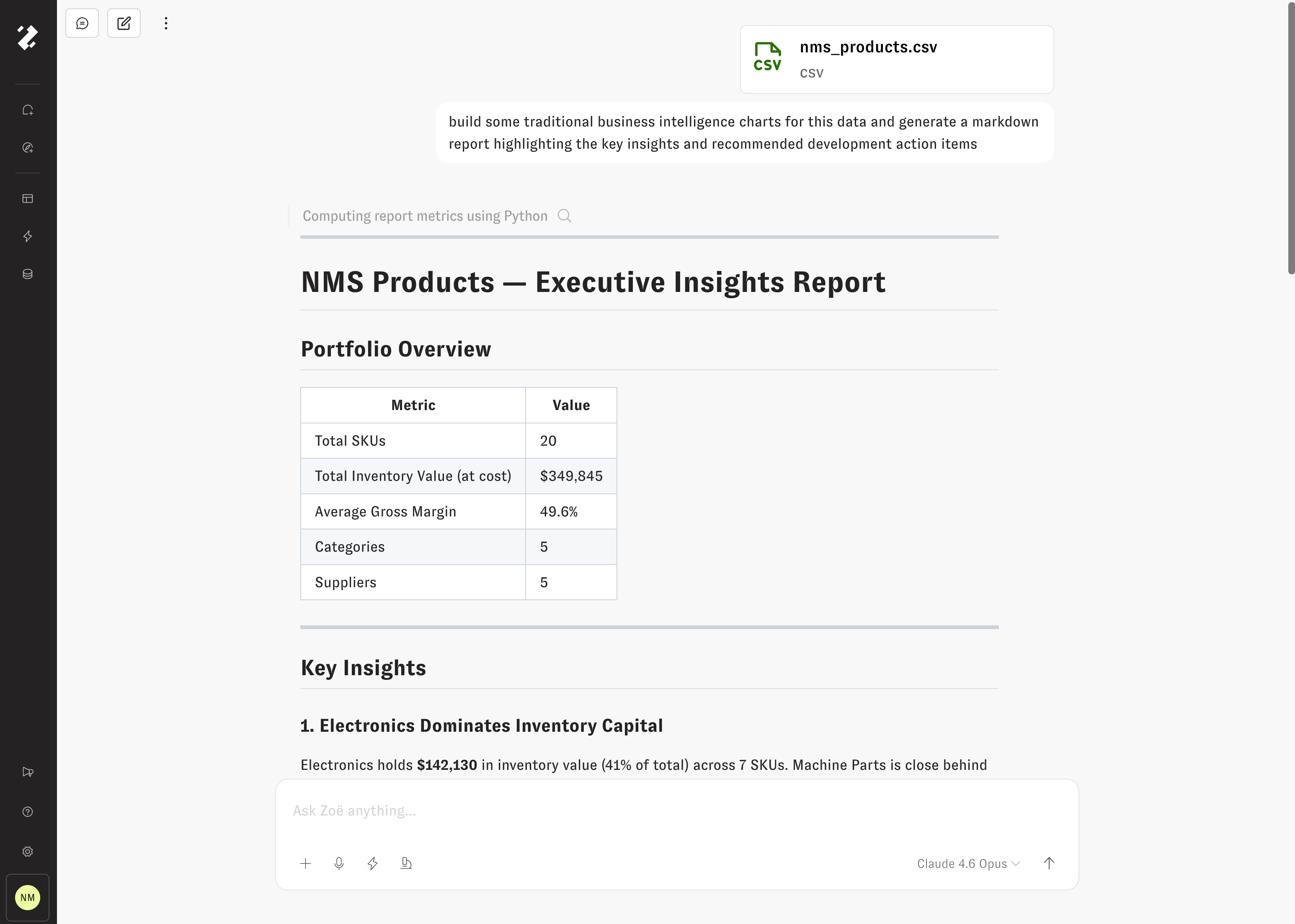
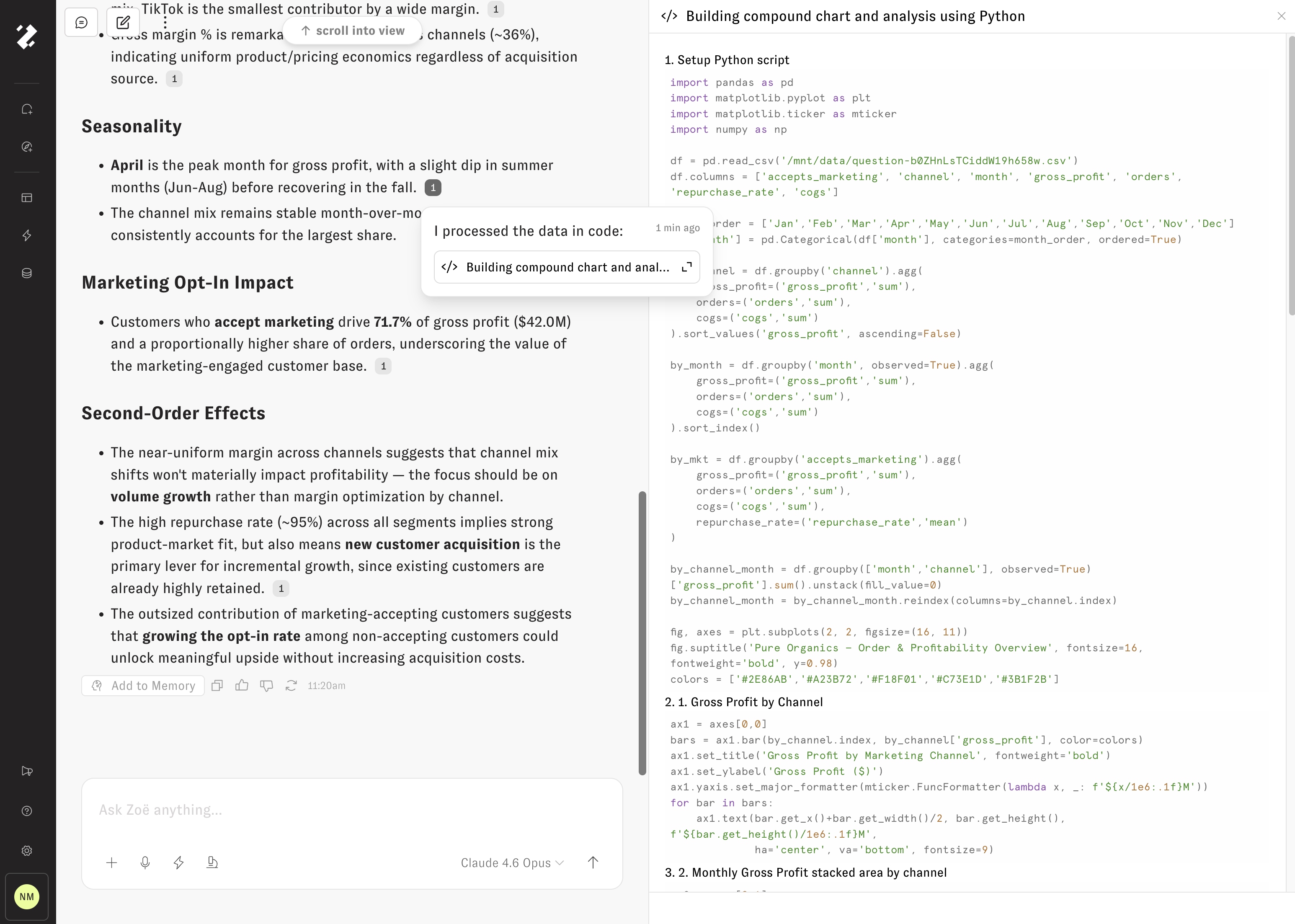
Once the file is attached, ask Zoë to chart the data, compute summary statistics, or surface trends. She has full access to the file contents and can reference specific rows and columns in her responses.

<figure><img src="/files/Yo6nTOHDRGyV0JIl4Exi" alt=""><figcaption><p>Zoë analyzing an attached CSV with charts and narrative insights</p></figcaption></figure>

## Query attachments

Query attachments let you build and run structured queries against your data model without leaving the conversation. Select metrics, apply slices and filters, review the results, and then ask Zoë follow-up questions — all in one place. In Exploratory mode, you can also write or paste raw SQL instead of selecting metrics and slices.

### Beyond the Explore page

If you're familiar with a traditional BI Explore page, think of query attachments as the conversational equivalent of an Explore page. Rather than context-switching to a separate query builder, you compose the same kind of query — metrics, dimensions, filters — right inside the chat input.

To start a fresh exploration, click the **New Explore** button in the navigational sidebar. This opens a new chat with a blank query attachment pre-loaded and selected, so you can immediately begin defining your query. From there, run the query, review the results, and continue the conversation with Zoë to refine your analysis, add visualizations, or drill into the data.

### Building a query attachment

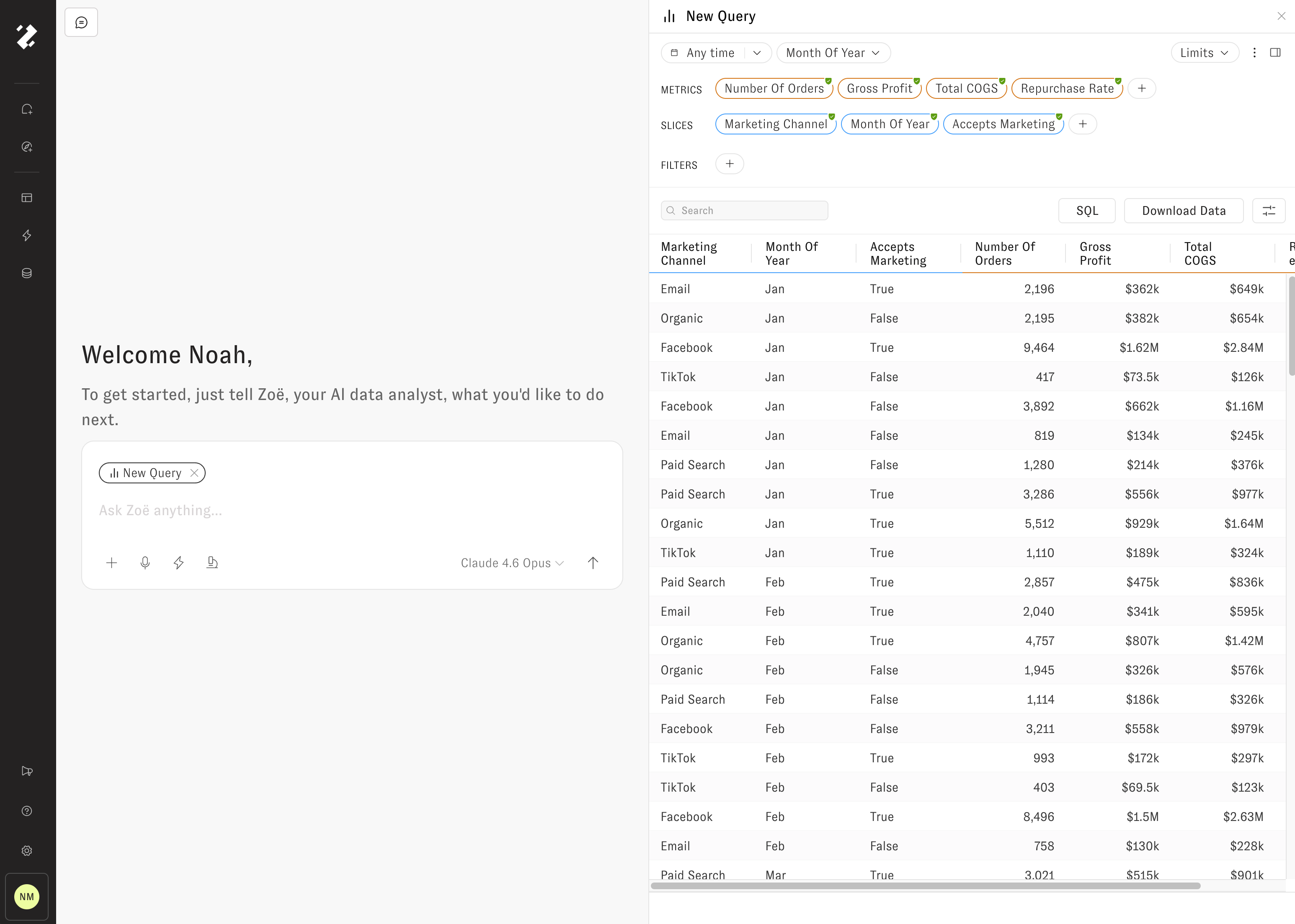
Select **Run a query** from the attachments dropdown, then search for metrics and slices from your workspace to assemble a query. Zoë uses the returned results as context when answering your message.

<figure><img src="/files/Js8bq7ILbOJBnh5joQTD" alt=""><figcaption><p>Selecting metrics and slices for a query attachment</p></figcaption></figure>

### Visualizations

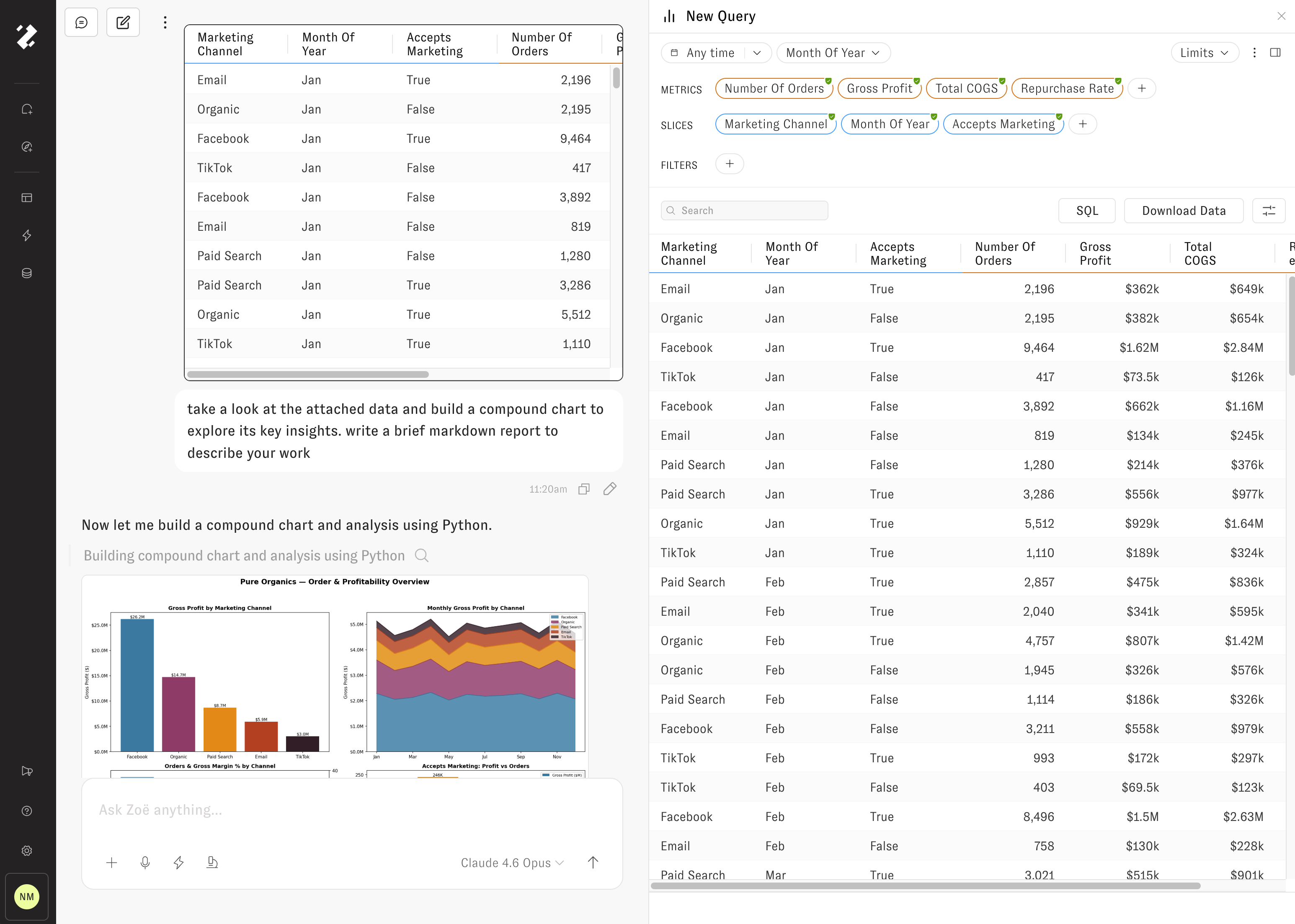
After you attach a query, Zoë can generate charts and visualizations from the results. She identifies the appropriate chart type based on the data shape and highlights key takeaways automatically.

<figure><img src="/files/xT1DkaZKtByEKJgCyzO9" alt=""><figcaption><p>Zoë generating a visualization from attached query results</p></figcaption></figure>

### Citations

When Zoë references specific values from an attached query in her written analysis, each value includes a citation. Click any citation to trace it back to the exact row and calculation in the source data — giving you full transparency into how every number was calculated.

<figure><img src="/files/9RKpDDh3YXdDFMM1JGS9" alt=""><figcaption><p>Inline citations linking narrative text back to query results</p></figcaption></figure>


---

# Agent Instructions: Querying This Documentation

If you need additional information that is not directly available in this page, you can query the documentation dynamically by asking a question.

Perform an HTTP GET request on the current page URL with the `ask` query parameter:

```
GET https://docs.zenlytic.com/using-zenlytic/attachments.md?ask=<question>
```

The question should be specific, self-contained, and written in natural language.
The response will contain a direct answer to the question and relevant excerpts and sources from the documentation.

Use this mechanism when the answer is not explicitly present in the current page, you need clarification or additional context, or you want to retrieve related documentation sections.