> For the complete documentation index, see [llms.txt](https://docs.zenlytic.com/llms.txt). Markdown versions of documentation pages are available by appending `.md` to page URLs; this page is available as [Markdown](https://docs.zenlytic.com/using-zenlytic/skills.md).
# Skills
Give Zoë persistent, on-demand instructions and reference material for complex workflows, style guides, and domain context.
Skills let you give Zoë persistent instructions, reference material, and complex analysis patterns that load on demand. Use skills for anything that's sometimes relevant — a fiscal calendar, a brand style guide, a multi-step reporting workflow — rather than context that needs to apply to every question.
Skills are the recommended replacement for Memories. Memories you already have will migrate to skills automatically in a future release; for new context, prefer skills from the start. See [Migrating from Memories and Topics](/migrations/migrating-from-memories-and-topics.md) for side-by-side examples.
## When to use a skill
Skills sit alongside the system prompt and view/field descriptions as one of several ways to give Zoë context. The right surface depends on when Zoë should see the context:
| Surface | Visibility | Best for |
| ------------------------------------------- | ---------------------------------------- | ------------------------------------------------------------------------------ |
| **System prompt** | Every question, always | Universal rules, default behaviors, terminology, data freshness, join routing |
| **Skills** | On demand — Zoë loads them when relevant | Complex analysis patterns, fiscal calendars, brand style, multi-step workflows |
| **View `description` / `zoe_description`** | When the view is in context | Table-level guidance — join paths, data caveats |
| **Field `description` / `zoe_description`** | After a field search | Field-level disambiguation and calculation notes |
| **Memories** (legacy) | Top 5 semantically matched per query | Legacy — prefer skills. Existing memories will migrate automatically. |
Good candidates for a skill:
* **Fiscal calendars**, especially non-standard ones like 4-5-4 retail calendars.
* **Industry-specific analysis patterns** — e.g., funnel analyses for SaaS, cohort analyses for consumer, contribution margin for marketplaces.
* **Multi-step workflows** — e.g., weekly business review, monthly board deck, QBR preparation.
* **Brand style and visual preferences** — via the built-in Brand Style Guide skill (see below).
Skills have no hard character limit, so they're a good fit for detailed instructions that don't belong in the system prompt.
## Accessing skills
You can access skills in two ways:
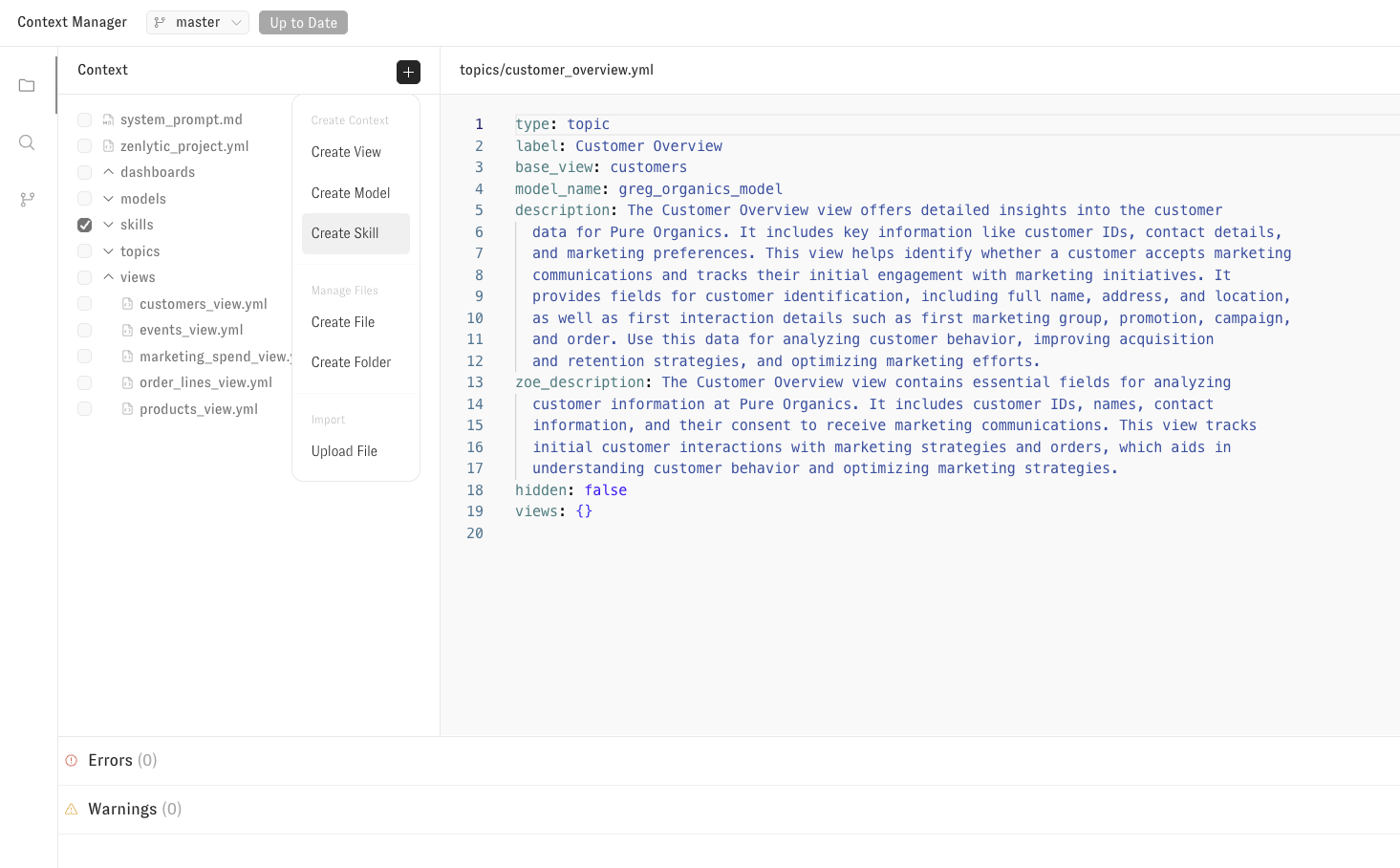
* **Context Manager** — Open the Context Manager from any chat to view and manage your skills.
## Setting up your Brand Style Guide
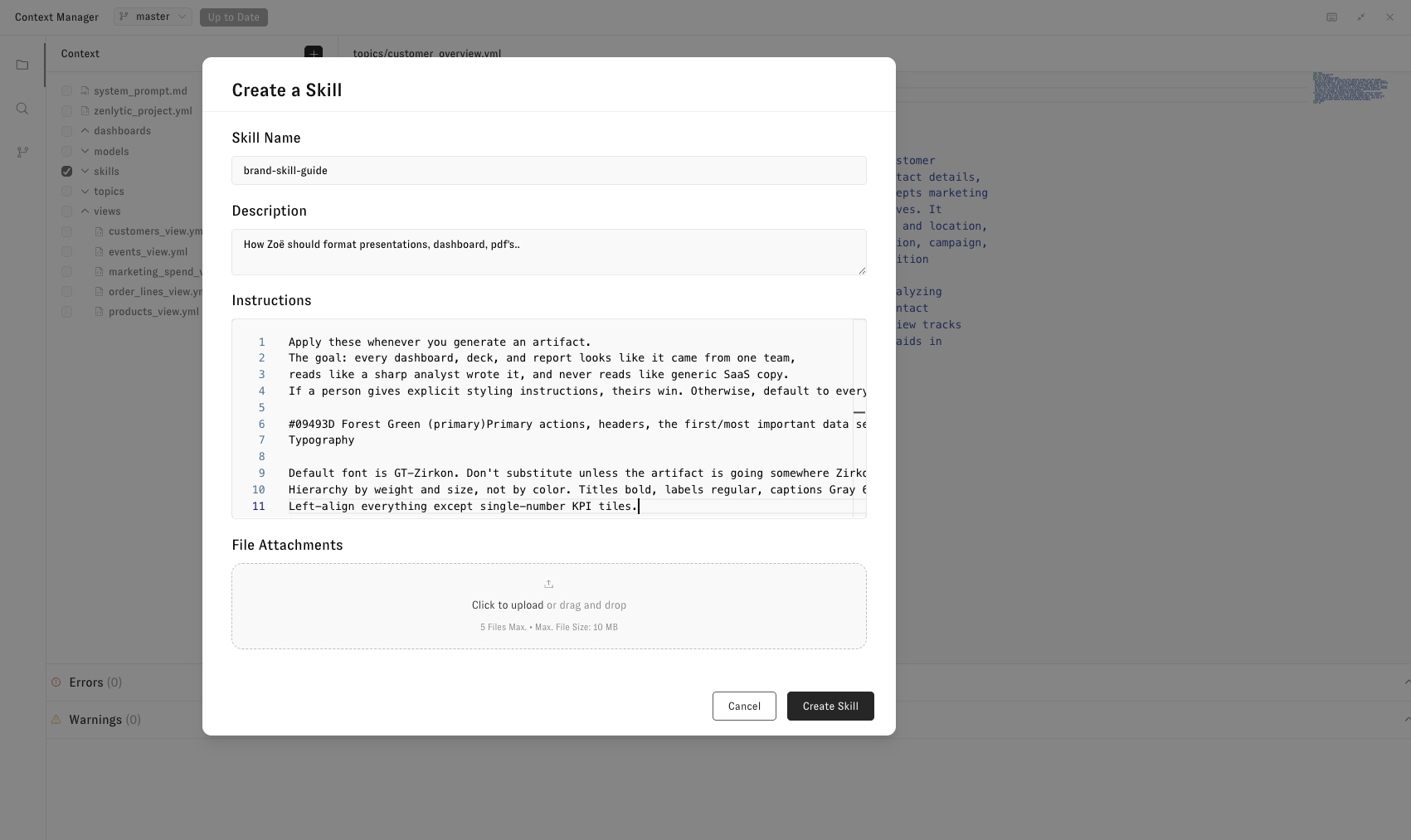
The best way to get started with skills is to set up your **Brand Style Guide**. This is a built-in skill where you describe your brand's colors, aesthetic, typography, and any other visual preferences you want applied to your artifacts. In a single sentence, you can completely change the look of everything Zoë creates.
For example, you might write:
> Use a dark navy (#1B2A4A) and gold (#D4A843) color palette with clean, modern typography and minimal borders.
Once saved, your brand style applies to dashboards, presentations, apps, and every other artifact Zoë builds.
## Uploading reference files
In any skill, you can upload up to **5 files** to give Zoë reference material. This is useful for assets like logos, style sheets, or example documents that Zoë should use when creating artifacts.
For example, try uploading your company logo. Give it a description like "Our company logo — place it in the upper left corner of presentations and dashboards." Zoë will then have access to your logo for artifact creation and can include it in PowerPoint presentations, dashboards, and more.
## Creating a new skill
To create a new skill:
1. Open skills from the Context Manager.
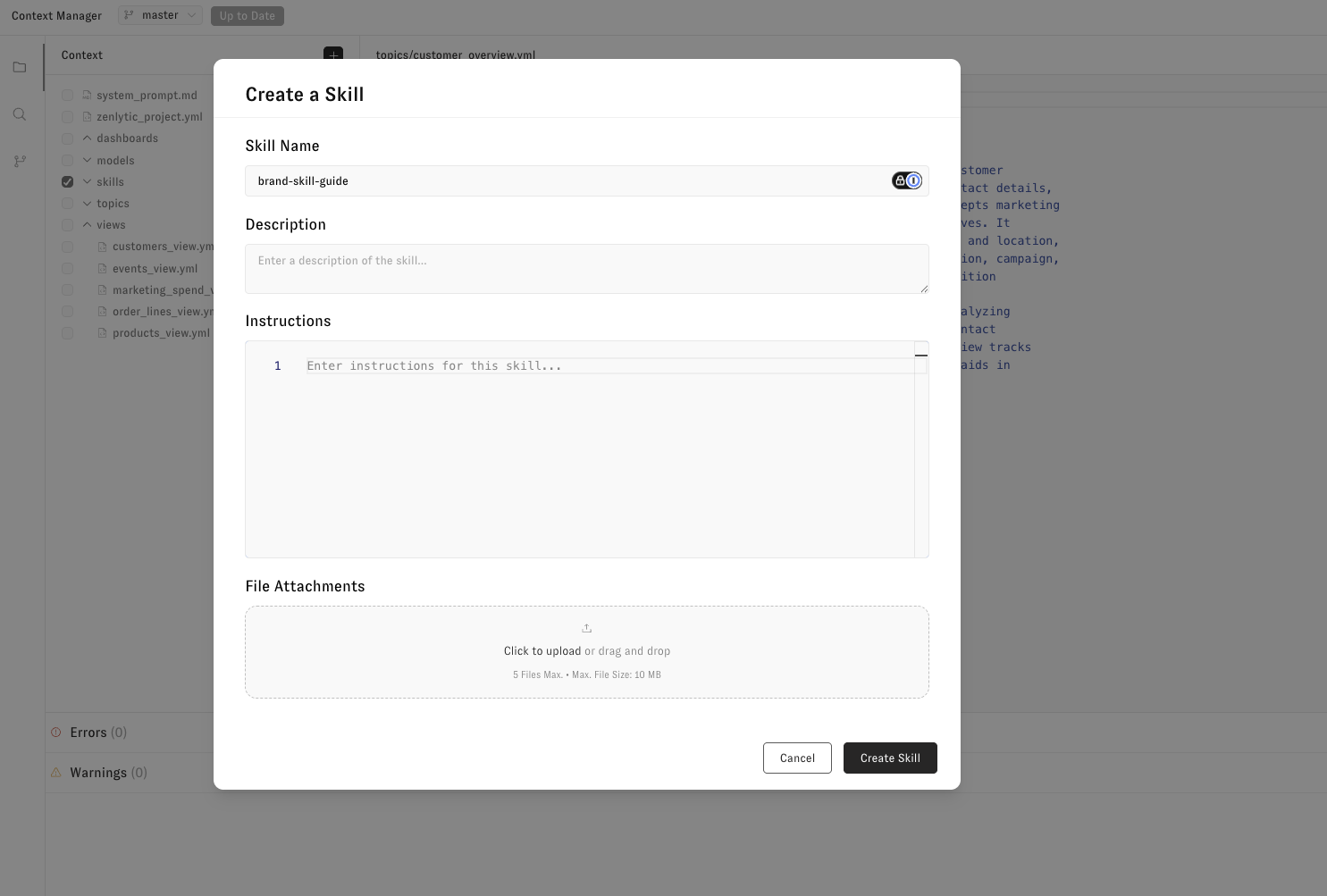
2. Click **Create Skill** (or the equivalent button).
3. Give the skill a **name** — something descriptive like "Weekly Report Format" or "Brand Style Guide."
4. Write a **description** — a short summary of what the skill does. Zoë uses the description to decide when to load the skill, so be specific about the kinds of questions or requests that should trigger it.
5. Add **instructions** — detailed directions on what Zoë should do when this skill is active. Be as specific as you like.
6. Optionally, upload up to 5 reference files.
7. Save the skill.
## Skill properties
Each skill is a markdown file with YAML front matter at the top:
```yaml
---
name: Weekly Report Format
description: How to structure and format the weekly business review.
enabled: true
---
```
* **`name`** (required) — the skill's display name.
* **`description`** (required) — a short summary of what the skill does. Zoë uses the description to decide when to load the skill, so be specific about when it should apply.
* **`enabled`** (optional) — controls whether Zoë can see the skill. Set `enabled: false` to hide the skill from Zoë. If `enabled: true` is set, or the property is omitted, Zoë sees the skill.
Skills migrated from memories may also include metadata like a skill ID, migration ID, and migration timestamp. You can safely remove these, but we recommend leaving them in place as a record of when the content was migrated.
## Who can create skills?
Skill management is gated by role. Only **Developer** and **Admin** tier users (Develop, Develop without Deploy, Admin, and Organization Admin) can create, edit, or delete skills, since skills affect context for the entire organization. Users in the **Explorer** tier (Explore, View, Restricted, Embed, Embed with SQL, Embedded with Scheduling) cannot manage skills, but they can still use skills that Developer and Admin users have set up.
## Skills vs. the system prompt
Both are ways to give Zoë instructions, but they serve different roles:
* **The system prompt is on every question.** Put universal rules there — default time ranges, terminology definitions, data freshness rules, "always prefer net revenue over gross" — anything Zoë should always consider.
* **A skill is loaded on demand.** Zoë decides when a skill is relevant based on its description and the user's question. Put context there that's only sometimes relevant.
A common pattern: keep the system prompt short and focused on always-on rules, and use skills for longer, situational playbooks.
## Skills vs. Memories
Memories and skills overlap in purpose — both capture reusable context — but skills are strictly more capable:
* Memories retrieve the top few by semantic match; skills are selected based on a description you write.
* Memories are tied to chat responses; skills are standalone documents you can iterate on.
* Memories have no hierarchy; skills can be as long and structured as you need.
Memories you have today will migrate to skills automatically. You don't need to convert them manually. For new context, create a skill.
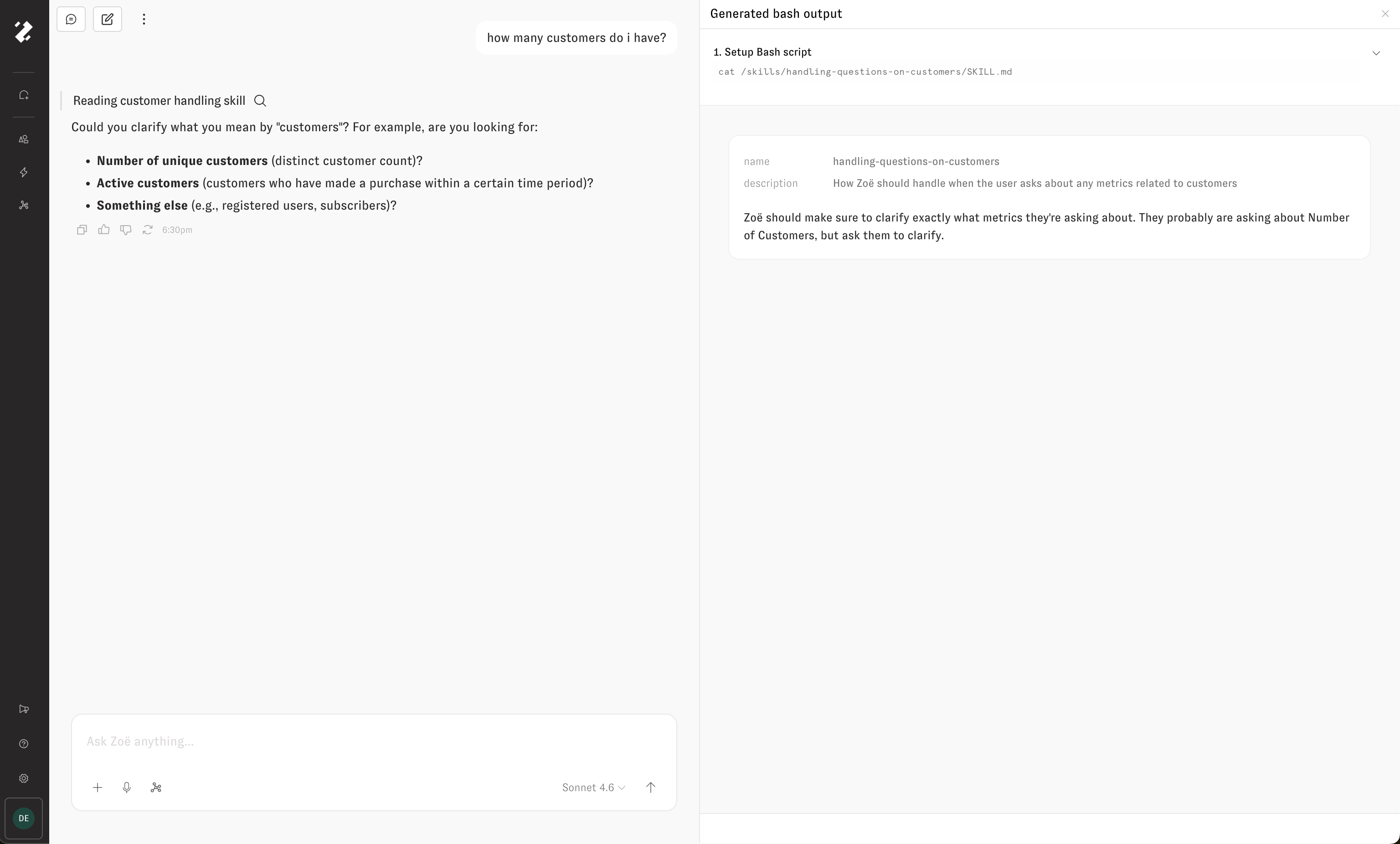
## Verifying skill usage
Once a skill is created, you can see it in action by reading Zoë's tool calls in any conversation. Look for **skill usage** in the tool call details to confirm that Zoë is applying your skill's instructions.
---
# Agent Instructions
This documentation is published with GitBook. GitBook is the documentation platform designed so that both humans and AI agents can read, navigate, and reason over technical content effectively. Learn more at gitbook.com.
## Querying This Documentation
If you need additional information that is not directly available in this page, you can query the documentation by asking a question.
Perform an HTTP GET request on the following URL with the `ask` and `goal` query parameters:
```
GET https://docs.zenlytic.com/using-zenlytic/skills.md?ask=&goal=
```
`ask` is the immediate question: it should be specific, self-contained, and written in natural language.
`goal` is what the user is ultimately trying to achieve, the reason they need the answer. Sharing it helps GitBook give you a better, more relevant answer. A goal is most helpful when it describes the outcome the user wants rather than restating the question. For example, with `ask=how do I create an API token`, a goal like `automate deployments from our CI pipeline` lets GitBook tailor the answer to that use case.
The response will contain a direct answer to the question and relevant excerpts and sources from the documentation.
Use this mechanism when the answer is not explicitly present in the current page, you need clarification or additional context, or you want to retrieve related documentation sections.